HOW TO CREATE SOCIAL MEDIA ICONS USING THE FREE FONT AWESOME FONT IN PHOTOSHOP
In this tutorial you will learn how to create some cool looking social media icons in Photoshop by simply using the free font Font Awesome.
What you’ll be creating
We will be creating some flat social media icons: we’ll start with the background then proceed with the icons. We’ll finish it up by creating some effects to make the icons more original like the gloss effect or the long shadow. You’ll need Photoshop CS3 or newer to follow this tutorial.
Tutorial Resources
- Font Awesome font
- Font Awesome Cheat sheet
Step 1
Create a New File at 500×400 pixels
Create a New Group and name it ‘Background’
Step 2
Fill your background with the color #e7e9ea using the Fill Bucket Tool.
Step 3
To add more effect to the background we will be adding some gradient. Click on the Adjustment Layer icon and choose Gradient… and use the following settings:
Blend Mode: Soft Light | Opacity: 25%
Step 4
Create another group and this time name it ‘symbols’
Step 5
Before anything else, to make this work easier and more organized-looking, we need Rulers and Grids. These can be accessed by simply going to View > Rulers and View > Show > Grids. Here are my setting for both the Rulers and Grids (this can be accessed by going to Edit>Preference):
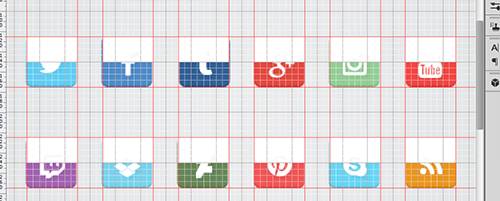
Now that we have that, we need to add giudes and this can be done by simply clicking and dragging from the ruler. Click and Drag from the vertical ruler if you want a vertical giude and vice versa. Here is how I divided the canvas (each icon being 50×50 pixels big and a 25 pixels space between each one):
Step 6
With the font we are working with in this tutorial, Font Awesome, you can add costumizable icons for your website. Normally, this is done by placing the CSS of the font to your website but since we are working with Photoshop, we need to copy each icon you desire to use from their Cheatsheet. So open up the said page, scroll down and look for all the icons you would like to use. I used the icons for the following (social media) sites: Twitter; Facebook; Tumblr; Google +; Instagram; Youtube; Twitch; Dropbox; Deviantart; Pinterest; Skype; Feed.
Step 7
Once you have found the icon you would like to use, copy it (Highlight it then Right Click> Copy..)
Then go back to Photoshop and grab your Text Tool from the Tools Panel. Change the Font settings as shown:
Then go back to Photoshop and grab your Text Tool from the Tools Panel. Change the Font settings as shown:
Step 8
Repeat the previous step until you have pasted all the icons you would like to use.
Step 9
Create a new group and rename it to ‘icon bg’ and place it below the ‘symbols’ Group
Step 10
Create a new layer and place it into the group we just created. I renamed the layer to ‘icon bg’.
Step 11
Using the Rectangular Circle Shape Tool (located at the Tools Panel below the Text Tool) I created the background of the icons following the guides we did earlier. Create the background on that layer only to make your work easier to look at.
Here are all the colors I used:
Twitter:#6bd1f4;
Facebook:#5a93cb;
Tumblr:#3c6a9c;
Google +:#e44940;
Instagram:#9bd29d;
Youtube:#f4504c;
Twitch:#a96db6;
Dropbox:#81d5ed;
Deviantart:#6e8e61;
Pinterest:#f25f5f;
Skype:#67d5f4;
Feed:#e9951d;
Now you don’t specifically have to use the same colors as I did, you are obviously free to change the colors and use whichever color you prefer to make your work more original.
If you don’t like the look of the rectangular circles, you can always use other shapes like a square or circle. To make a perfect circle or square, be sure to hold the SHIFT key as you are making them.
Step 12
If you are already pleased with what we have just done, you can stop here but if you would like to spice up the icons some more go on and continue reading. We shall start by adding some Drop Shadow to the icons. Open the ‘symbols’ group, select one of the icons and click the fx icon > Drop Shadow. Use the following settings:
Step 13
Repeat the previous step with the rest of the icons. To make your work a lot easier, right click on the layer > Copy Layer Style. Then select the rest of the icons/symbols layers, right click > Paste Layer Style.
Step 14
Now add some Inner Shadow to the background of each icon. So open up the ‘icons bg’ group, select the layer and click the fx icon > Inner Shadow. Use the following settings:
Step 15
Create a new layer and name it Gloss Effect. Change the foreground color to #ffffff; using the Rectangular Marquee Tool, create some rectangles that is just half the size of your icon (approx. 50x25pixels). Do this for all of the icons.
Then Change the Blend Mode to Soft Light and Opacity to 20% and Fill to 80%.
Step 16
(If you are doing this step, be sure to not show the Gloss Effect) Create a new layer and name it to Long Shadow. This step is a bit harder compared to rest of the effects. Place the new layer below the Gloss Effect layer.
Step 17
Grab the Polygonal Lasso Tool and start creating some tilted rectangles: start by following the shape of your icon only from the bottom-right side then make a diagonal line until it reaches the bottom-right end of the icon’s background,make a straight line just until it reaches the center of the background then connect the lines.
Step 18
Last step! Change the layer’s opacity to 10% and it’s fill to 0%.
Now Click on the fx icon and select Color Overlay…. Use the following settings:
Now Select Gradient Overlay.. and use these settings:
Final Results
Download the PSD